

Have you ever found yourself scrambling to schedule a meeting at the last minute, only to realize your booking system doesn’t make it easy for attendees to make changes?
You’re not alone. A shocking 37% of meetings start late, and one of the primary reasons is poor scheduling and scheduling processes that leave both hosts and attendees frustrated.
In today’s fast-paced business environment, flexibility is a necessity.
Whether it’s a sudden client emergency, a family obligation, or simply the need to accommodate different time zones, the ability to schedule meetings seamlessly is imperative.
This is where Hydra Booking, the premier WordPress booking plugin, transforms your meeting management from a headache into a streamlined, professional experience.
In this comprehensive guide, we’ll explore how Hydra Booking’s advanced scheduling features can help you schedule a meeting and why it stands out as the best WordPress booking plugin for businesses in 2025.
Why Meeting Scheduling Matters More Than Ever in 2025

With people averaging 14.8 hours per week in meetings and attending 17.1 meetings per week, having a powerful scheduling system is a must for maintaining productivity and professional relationships. Being able to schedule a meeting means you’re ahead of your competitors by offering comprehensive feature.
The Hidden Cost of Poor Meeting Management
The statistics surrounding meeting inefficiency are staggering. Unproductive meetings cost US businesses $37 billion in salary costs annually, and coordinating and scheduling recurring internal meetings costs a company about $5,000 per year. These numbers highlight why having an efficient scheduling system isn’t just about convenience—it’s about your bottom line.
The Rise of Flexible Work Culture
Time spent in meetings has been rising by 8% to 10% annually since 2000, and with the shift to more flexible work arrangements, the need for adaptable scheduling has never been greater.
Modern professionals work across multiple time zones, juggle various responsibilities, and expect the same level of flexibility from their booking systems that they have in other aspects of their digital lives.
Building Professional Relationships Through Flexibility
When you make it easy for clients and colleagues to schedule a meeting, you’re sending a clear message: their time is valuable, and you respect their need for flexibility.
This simple gesture can strengthen professional relationships and increase client satisfaction significantly.
Why Hydra Booking is the Best WordPress Booking Plugin for Meeting Management
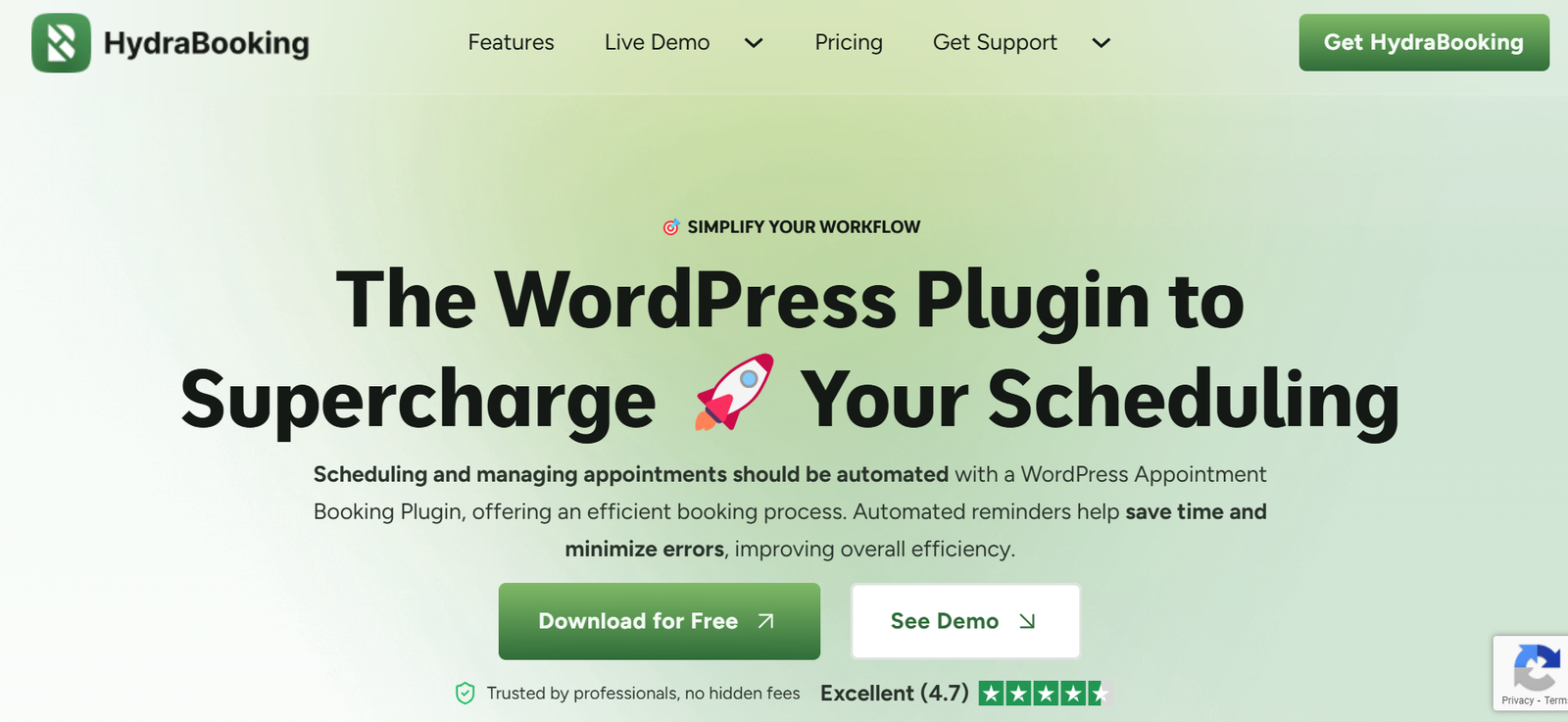
Hydra Booking isn’t just another WordPress booking plugin—it’s a complete meeting management ecosystem designed for modern businesses to schedule a meeting with ease.
Unlike other booking plugins that focus solely on appointment scheduling, Hydra Booking provides a comprehensive solution that handles everything from initial booking to scheduling, notifications, and follow-ups.
Advanced Scheduling Features
What sets Hydra Booking apart from other WordPress booking plugins is its sophisticated approach to schedule a meeting.
The plugin doesn’t just allow scheduling; it makes it intuitive, automated, and professional. Here’s what makes Hydra Booking the premier choice:
Flexible Options To Schedule a Meeting
- Attendee-initiated scheduling without host intervention
- Host-controlled scheduling permissions
- Automatic availability checking
- Real-time calendar updates
- Integrated notification system
Smart Conflict Resolution
- Automatic detection of scheduling conflicts
- Buffer time consideration for seamless scheduling
- Integration with existing calendar systems
Seamless Integration Capabilities
Hydra Booking integrates with major platforms including:
- Email Marketing and CRM: Mailchimp, Zoho, Fluent Form and FluentCRM (upcoming)
- Automation Tools:, Zapier
- Appointment booking calendar Sync: Google Calendar and Outlook calendars to avoid double bookings
- Payment Processors: PayPal, Stripe and Woo Payment.
- Video Conferencing: Zoom, Google Meet and Microsoft Teams
- Web Hook Support
This extensive integration capability means that when meetings are scheduled, all connected systems are automatically updated, eliminating the manual work and potential errors that plague other booking solutions.
Professional Notification System
The plugin’s notification system ensures that all parties are informed about schedule changes through:
- Customizable email templates
- Automatic reminder systems
- Multi-language support
- Dynamic content insertion
- Professional branding options
Step-by-Step Guide To Schedule a Meeting in Hydra Booking
Ready to unlock seamless scheduling in Hydra Booking? Follow this comprehensive step-by-step guide to enable, configure, and start to schedule a meeting effectively. Each step below aligns with Hydra Booking’s official documentation, ensuring accuracy and clarity for users at any level.
Step 1: Installing and Activating Hydra Booking
HydraBooking is available in the WordPress plugin repository, making installation quick and easy.
- Log in to your WordPress Dashboard and navigate to Plugins → Add New.
- In the search bar, type HydraBooking and locate the plugin.

- Click Install Now, and after installation, hit Activate.

Once activated, you’ll be redirected to a page to create a booking.
- Enter your email address and click the Get Started in a Minute button.
- Select your Business Type

- Assign a descriptive title to the schedule for easy management.
- Example:
- “Standard Weekly Hours” (for regular business hours)
- “Holiday Schedule” (for special dates with different timings)
- Select the appropriate time zone from the drop-down.
This ensures that bookings align correctly, especially for businesses serving international clients.
- Set start and end times for each day of the week.
- Example schedule:
- Monday: 9:00 AM – 5:00 PM
- Tuesday: 10:00 AM – 4:00 PM
- Leave any day disabled if no bookings should be accepted on that day.

Congratulations! You just finished creating your first Meeting.

If you’ve not yet decided on the booking details and information, you can click on the Skip option and later create it from the Availability tab.
We’re going to talk about the Availability tab shortly.

Step 2: Access the Meeting Dashboard

The Meeting Dashboard is your control panel for managing all scheduled meetings. Navigate to the Hydra Booking plugin in your WordPress dashboard and go to the “Meetings” section.
Key Features:
- Filter by Category: Sort meetings for organized viewing.
- Search Bar: Quickly find a meeting by name or keyword.
- Filter by Host: View meetings assigned to a specific team member.
This dashboard ensures a streamlined overview of all existing meetings.
Step 3: Create a New Meeting
Click on the “Create a New Meeting” button. Hydra Booking will prompt you to select a meeting type:

- One-to-One: Best for personal consultations or appointments.
- One-to-Many: Ideal for webinars, classes, or workshops with multiple participants.
Choose the meeting type that fits your needs and proceed to configure its details.
Step 4: Configure Meeting Details
On the setup screen, fill out the following fields:
- Meeting Title: Enter a clear, descriptive name.
- Description: Include a summary, agenda, or key information.

- Select Host: Choose the responsible host from the dropdown.
- Duration: Define how long the session will last.

- Location:
- Zoom
- Google Meet
- In-Person (Attendee or Organizer address)
- Phone call (Attendee or Organizer number)
- Custom (Set your own URL or platform)
- Zoom
- Select Category: Organize the meeting under a new or existing category.

- Click on Save & Continue button.
This setup ensures attendees have all the necessary information upfront.
Step 5: Set Availability
Availability determines when your meeting can be booked.

Options include:
- Indefinitely into the Future: Open scheduling without an end date.
- Specific Date Range: Limit bookings to a set timeframe.
You can also:
- Use Existing Availability: Pull from saved host schedules.
- Create Custom Availability: Set unique time slots for this event.
- Add Date Overrides: Block out specific dates or holidays.

These options give you full control over your scheduling flexibility.
Step 6: Reconfirm or Set a New Host
If needed, reconfirm or update the host for the meeting:
- Select the host again from the dropdown.
- Choose between existing or custom availability specific to the selected host.

This ensures the correct schedule is linked to the right team member.
Step 7: Configure Meeting Limits
Avoid overbooking and ensure downtime between sessions by setting limits:
- Buffer Time Before Meeting*: Add prep time before the session.
- Buffer Time After Meeting*: Allow a break after the meeting.

- Booking Frequency: Limit how often this meeting can be booked.
- Meeting Interval*: Define spacing between sessions (e.g., every 30 minutes).
These limits help manage your schedule professionally and prevent burnout.
Step 8: Enable Recurring Events (Pro Feature)

If you’re using the Pro version, set up recurring events:
- Repeats Every: Choose how often (daily, weekly, etc.)
- Maximum Number of Bookings: Set a limit per recurrence.
- Use Meeting Length (Default): Auto-applies your standard duration.
You can also allow:
- Cancelations
- Rescheduling
These settings are ideal for subscription services or regular appointments.
Step 9: Add Custom Questions or Forms
Collect key information from attendees before the meeting:

- Create Custom Form: Add fields such as name, goals, or concerns.
- Use Existing Form: Integrate with tools like Contact Form 7, Fluent Forms, or Gravity Forms.
This step enhances the attendee experience and helps with preparation.
Step 10: Set up Booking Notifications
Hydra Booking sends automated alerts to keep everyone informed.

Default notification types include:
- Booking Confirmation
- Booking Cancellation
- Booking Reschedule
- Booking Reminder
This ensures hosts and attendees are always in the loop.
Step 11: Customize Notification Content
Make your notifications reflect your brand and tone:

- Select Template: Choose a default or custom template.
- From Address: Sender’s email address.
- Subject Line: Use dynamic placeholders like {{host.name}} or {{attendee.name}}.
- Mail Body:
- Heading
- Custom Message with placeholders like {{meeting.title}}, {{meeting.date}}, etc.
- Add bullet points, bold text, and links for a professional layout.
- Heading
This improves clarity and consistency across all communication.
Step 12: Enable CRM and App Integrations
Connect Hydra Booking with your favorite platforms:

- Mailchimp
- FluentCRM
- ZohoCRM
- Pabbly
- Zapier
These integrations automate contact syncing, follow-ups, and notifications. You can also use custom webhooks for advanced workflows.
Step 13: Configure Payments (If Applicable)
If your meetings are paid, set up your preferred payment method:

- WooCommerce
- PayPal
- Stripe
You’ll need to connect your account credentials. This allows you to collect payments during the booking process.
Step 14: Share or Embed Your Meeting Form
Once everything is set up, click “Save & Finish.” Choose from these publishing options:

- Share Link: Copy and paste the direct booking link.

- Shortcode: Embed on any WordPress page or post.

- Embed Code: Use an iframe code to display the form on external websites.

These options make it easy to start accepting bookings across different platforms.
By following these steps, you can fully allow your customers to schedule a meeting, streamlining your business’s appointment workflow and improving client experience.
Don’t forget to test your booking form and review all settings before going live!
Frequently Asked Questions
Can attendees schedule meetings without host approval?
Yes, if you enable the attendee scheduling option, attendees can schedule their meetings automatically without requiring host approval. The system will only allow scheduling to available time slots.
How many times can a meeting be scheduled?
By default, there’s no limit to scheduling, but you can set custom limits in your meeting configuration to prevent abuse of the system.
Will scheduled meetings appear in my connected calendar applications?
Yes, Hydra Booking automatically updates all connected calendar systems when meetings are scheduled, ensuring consistency across all platforms.
Can I customize the scheduling notification emails?
Absolutely. Hydra Booking provides extensive customization options for all notification emails, including scheduling notifications. You can modify templates, add your branding, and use dynamic placeholders.
What happens if someone tries to schedule to a time that’s already booked?
The system automatically prevents double-booking by only showing available time slots that consider your buffer times and existing appointments.
Can I set different scheduling policies for different types of meetings?
Yes, each meeting type can have its own scheduling configuration, allowing you to set different policies for consultations, workshops, team meetings, etc.
How does scheduling work for recurring meetings?
When scheduling recurring meetings, you can choose to schedule just one instance, the entire series, or future instances only. The system maintains the recurring pattern while tracking any exceptions.
Is there a limit to how close to the meeting time someone can schedule?
You can set minimum notice requirements for scheduling. For example, you might require at least 24 hours’ notice for scheduling.
Can I see a history of all scheduling activity?
Yes, Hydra Booking maintains a complete log of all booking activities, including scheduling history, which you can access through your dashboard.
What payment implications are there for scheduled meetings?
If payments were processed for the original meeting, they automatically transfer to the scheduled time slot. No additional payment processing is required.
Conclusion: Transform Your Meeting Management with Hydra Booking
In a business environment where 83.13% of employees spend up to one-third of their workweek in meetings, having an efficient scheduling system is essential for maintaining productivity and professional relationships.
The cost of poor meeting management extends far beyond wasted time, with employers paying about $29,000 annually for meetings.
Hydra Booking addresses these challenges head-on by providing the most comprehensive WordPress booking plugin solution available today. You can easily schedule a meeting without having to compromise on the service your business provides. Ready to transform your meeting management experience? Start with Hydra Booking today and discover why it’s becoming the go-to WordPress booking plugin for businesses worldwide.

 March 20, 2025